
How to Watch Anime Offline Legally (Crunchyroll, Netflix & More)
You can watch anime offline legally on Crunchyroll Premium, Netflix and HIDIVE: open the app, tap the download icon on an episode, and it is saved inside the app for playback without any connection. This guide covers the exact steps for each service, how download limits and expiry rules actually work, how much storage episodes take at each quality setting, and the mistakes that leave travellers with a dead download list.
Quick verdict: Crunchyroll Premium is the best offline option for seasonal anime, Netflix is best for downloading whole seasons before a trip, and HIDIVE covers its niche exclusives. Whatever you use: download on Wi-Fi the night before, check the Downloads tab before you leave, and keep quality at medium for phone viewing — it looks the same and takes half the space.
Table of Contents
- Watch Anime Offline Legally: How Offline Downloads Work
- Offline Rules Compared: Crunchyroll vs Netflix vs HIDIVE
- Crunchyroll: Downloading Episodes to Watch Offline
- Netflix: Downloads on Every Standard Plan
- HIDIVE and Other Services
- How Much Storage Do Downloaded Episodes Take?
- Tips for Better Offline Anime Viewing
- Common Offline Viewing Mistakes
- Watching Offline on TV or Laptop
- Downloads and Travelling Abroad
- The Night-Before Checklist: Preparing Downloads for a Trip
- Battery, Data and Settings Worth Checking
- The Bottom Line
- Frequently Asked Questions
Watch Anime Offline Legally: How Offline Downloads Work
Downloaded episodes are stored inside the app itself, not as video files you can copy around. When you download an episode, the app saves an encrypted copy tied to your account, and it plays only within that app while your subscription is active. Practically, that means:
- Downloads live and die with your account and plan — if your subscription lapses, downloaded episodes stop playing.
- You watch them from the app’s Downloads section, not from your phone’s gallery or file manager.
- Downloads have expiry rules: many services require you to start watching within a set number of days of downloading, and finish within a window after pressing play. Unwatched downloads can expire and need re-downloading.
- You need storage space. A single episode at high quality can take a few hundred megabytes, so a full season adds up quickly.
None of this is a problem in practice — it simply means downloads are designed for offline viewing, not for building a permanent offline library.
Offline Rules Compared: Crunchyroll vs Netflix vs HIDIVE
| Rule | Crunchyroll | Netflix | HIDIVE |
|---|---|---|---|
| Downloads included | Premium tiers | Standard plans | Subscriber plans |
| Where downloads work | Mobile apps | Mobile apps + Windows app | Mobile apps |
| Whole-season download | Episode-by-episode or batch (app version dependent) | Yes, season download supported | Episode-by-episode |
| Expiry | Downloads expire under in-app rules; renew on Wi-Fi | Start/finish windows apply per title | Downloads expire under in-app rules |
| Smart/auto downloads | No | Yes (Smart Downloads) | No |
| Streaming-only exceptions | Some titles, by licence | Some titles, by licence | Some titles, by licence |
Exact limits — episode caps, device counts, expiry windows — vary by plan, title and region, and services adjust them over time. Treat the table as the shape of each system; the app’s Downloads section and help pages show the numbers that apply to your account.
Crunchyroll: Downloading Episodes to Watch Offline
Crunchyroll supports offline downloads on its mobile apps for Premium members. Downloads are a paid-plan feature — and since the free tier ended on December 31, 2025, every Crunchyroll viewer is on a paid plan now.
To download an episode:
- Open the Crunchyroll app on your phone or tablet and sign in to a Premium account.
- Open the series page and find the episode you want.
- Tap the download icon next to the episode (some episodes can also be queued in batches from the season view, depending on your app version).
- Wait for the download to finish, then find the episode under the app’s Downloads area.
- Watch any time — no connection required — while your Premium subscription stays active.
Practical notes: download over Wi-Fi to avoid eating your data plan; set download quality in the app settings to balance picture quality against storage; and remember that download availability can vary by title due to licensing restrictions — most simulcast series are downloadable, but an occasional title may be streaming-only.
Best for offline: weekly simulcast followers who want new episodes on the commute the morning after broadcast.
If you are still deciding whether Premium is worth it , our breakdown of Crunchyroll’s plans explains exactly what the tiers include.
Netflix: Downloads on Every Standard Plan
Netflix includes downloads in its standard plans, and the process is simple:
- Open the Netflix app on mobile (or the Windows app) and sign in.
- Find the anime series or film you want.
- Tap the download button on the episode or film page.
- Access your downloads from the app’s Downloads tab.
Netflix also offers a “Smart Downloads” feature that automatically deletes watched episodes and downloads the next one when you are back on Wi-Fi, and an optional auto-download feature for recommended content. Titles vary by region, and some licences exclude downloading — but the large majority of Netflix’s anime catalogue is downloadable.
Since Netflix releases anime in complete seasons, it is ideal for trip preparation: download an entire season the night before you travel, and you have a binge ready for the whole journey. If you want context on Netflix’s anime approach versus the dedicated alternative, see Crunchyroll vs Netflix for anime.
Best for offline: trip preparation and binge-watchers — whole seasons, minimal management, automatic next-episode downloads.
HIDIVE and Other Services
HIDIVE’s mobile apps support downloads for subscribers, with a similar tap-to-download flow from each episode page. If a niche or exclusive series brought you to HIDIVE, its offline support means that series travels with you just like the bigger services’ titles.
Other legal anime platforms vary — some smaller services are streaming-only, so check the app description or help pages before relying on downloads for a trip. Free, ad-supported services (like Tubi-style services) generally do not offer downloads at all: offline viewing is one of the perks paid plans exist to sell.
Best for offline: fans of HIDIVE’s exclusive catalogue who would otherwise have no legal way to take those series on the road.
How Much Storage Do Downloaded Episodes Take?
File size depends on quality setting, episode length and how much motion is on screen, but these rough ranges hold for a typical ~24-minute episode:
| Download quality | Approx. size per episode | 12-episode season | Best for |
|---|---|---|---|
| Low / data-saver | ~100–150 MB | ~1.5 GB | Tight storage, small screens |
| Medium / standard | ~250–350 MB | ~3–4 GB | Phone viewing — the sweet spot |
| High | ~500 MB–1 GB | ~6–12 GB | Tablets and large screens |
These are estimates, not guarantees — action-heavy episodes compress worse than quiet dialogue episodes. The rule of thumb: check your free space before a download session, and never queue a season at high quality on a nearly full phone.
Tips for Better Offline Anime Viewing
Manage your storage
Anime episodes at high quality are bigger than you expect. Before a trip, check your device’s free space, lower the download quality in the app settings if space is tight, and delete watched episodes as you go. Medium quality usually looks fine on a phone screen.
Download on Wi-Fi, not data
Queue your downloads at home or at work on Wi-Fi. Downloading a full season over mobile data can burn through a monthly allowance in an evening.
Refresh expiring downloads
If you download episodes and then delay your trip by a week, some may have expired. Open the Downloads section before you leave — while you still have Wi-Fi — and re-download anything that has lapsed.
Sort out playback problems in advance
An offline episode that stutters or will not open is usually an app or storage issue, not a download failure. Restarting the app and freeing space fixes most cases; if general streaming is also misbehaving, work through these streaming buffering fixes, many of which apply to any anime app.
Bring the accessories
Headphones are the obvious one, but also consider a small phone stand for tray tables and a charged power bank — offline playback removes the data problem, not the battery problem.


Common Offline Viewing Mistakes
- Downloading the night you travel — after the flight. Downloads need Wi-Fi and time; queue them the evening before, not from the airport gate.
- Never opening the Downloads tab until you are offline. Expired or failed downloads only reveal themselves in the app, and fixing them needs a connection. Check at home.
- Max quality on a small phone. On a phone screen, medium and high are nearly indistinguishable, but high takes roughly twice the space and download time.
- Assuming every title is downloadable. Licensing makes a minority of titles streaming-only on every service. Verify your must-watch episodes show the download icon before relying on them.
- Letting your subscription lapse before the trip. Downloads stop playing when Premium access ends, even mid-download-list. Keep the plan active until you are back.
Watching Offline on TV or Laptop
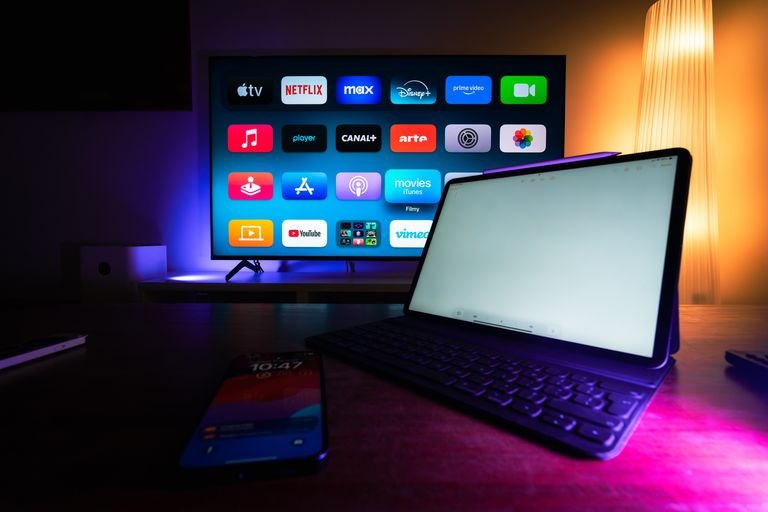
Downloads are primarily a mobile feature. Laptops can use the Netflix Windows app for downloads, but most anime services restrict downloads to phones and tablets. For a TV, the practical offline workaround is to connect a phone or tablet with downloaded episodes to the TV with an HDMI cable — playback comes from the app on your device, so the downloaded episode works without Wi-Fi. Screen mirroring over a local network can also work in some setups, but the cable is the reliable option when there is no router at all.
Downloads and Travelling Abroad
A common worry: do downloaded episodes still play when you arrive in another country? In general, yes — episodes already sitting in the app’s Downloads section typically keep playing during travel, even in regions where that title is not part of the local streaming catalogue, because playback comes from the file on your device rather than a fresh stream. Downloading new episodes while abroad follows the destination’s licensing rules, so a series you could download at home may show as streaming-only (or unavailable) until you return.
Rules vary slightly by service and can change, so the practical move is simple: complete all your downloads before departure, verify them in the Downloads tab, and treat anything you grab abroad as a bonus rather than a plan.
The Night-Before Checklist: Preparing Downloads for a Trip
Run through this the evening before any journey and offline watching becomes boringly reliable:
- Confirm the plan. Check your subscription is active for the whole trip — downloads stop playing if it lapses mid-journey.
- Connect to Wi-Fi and update the apps. App updates sometimes arrive with playback fixes; installing them at home avoids surprises.
- Queue the downloads. Whole seasons on Netflix, your weekly simulcasts on Crunchyroll. Leave the phone plugged in — large queues drain batteries.
- Open the Downloads tab and play ten seconds of one episode. This confirms the downloads completed, are not expired, and actually play.
- Check free space. If the queue filled the phone, delete the high-quality duplicates and keep medium.
- Pack for playback: headphones, charging cable, power bank, and a small stand if you will watch on a tray table.
Six steps, fifteen minutes, and the only offline problem left is choosing what to watch first.
Battery, Data and Settings Worth Checking
A few settings decide whether downloads treat you well on the road:
- Download quality vs battery: decoding high-quality video works the processor harder. For long travel days, medium quality extends battery life as well as saving storage.
- Wi-Fi-only downloads: every major app has a toggle to prevent downloads over mobile data. Leave it on permanently.
- Auto-delete watched episodes: Netflix’s Smart Downloads handles this automatically; on other apps, clear watched episodes during the trip so space never blocks a new download.
- Screen brightness: the single biggest battery drain while watching. Offline playback plus modest brightness is the longest-watching combination your phone can offer.
The Bottom Line
Watching anime offline legally is easy in 2026: Premium Crunchyroll, Netflix and HIDIVE all let you download episodes to your phone or tablet in a few taps. Queue them on Wi-Fi, mind your storage and expiry dates, and your commute, flight or off-grid weekend comes with a full season of anime attached — no buffering wheels involved.
As a final habit, review your downloads the evening before every trip and re-download anything that expired. Five minutes of housekeeping at home saves you from discovering a dead download list at 35,000 feet.
Frequently Asked Questions
Can I watch Crunchyroll offline for free?
No. Offline downloads on Crunchyroll are a Premium feature — and there is no free way to watch Crunchyroll at all anymore, since its free ad-supported tier ended on December 31, 2025. The same applies to free services elsewhere — downloads are one of the main perks paid plans sell.
Do downloaded anime episodes expire?
Yes. Most services apply expiry rules: an unwatched download may expire after a set period, and once you press play you typically have a limited window to finish. Expired downloads simply need to be downloaded again over Wi-Fi — your place in the series and your watchlist are unaffected.
How many episodes can I download at once?
It depends on the service, your plan and the titles’ licences. Services typically allow dozens of episodes across one or more devices, which is more than enough for a trip. If you hit a limit, the app will tell you — deleting watched episodes frees space in the quota immediately.
Can I download anime on my laptop?
On Netflix, yes — its Windows app supports downloads. Crunchyroll and HIDIVE downloads are mobile-app features, so on a laptop you would stream instead. If laptop viewing matters for a trip, Netflix is the practical choice.
Will downloads work in airplane mode?
Yes — that is exactly what they are for. Once an episode is fully downloaded, it plays with no connection at all. Just open the app before you lose signal if it needs to verify anything at launch, and keep your subscription active for the trip dates.
Does downloading use less data than streaming?
Downloading uses roughly the same total data as streaming at the same quality — the advantage is when it happens. Download over home or office Wi-Fi, and your mobile data stays untouched while you watch on the road.
Why does an episode have no download button?
Some titles are streaming-only because of licensing restrictions, and the download icon simply does not appear for them. This affects a minority of titles on every service. If a must-watch series is streaming-only, plan around it: watch it at home, and download other series for the trip.



4 Comments